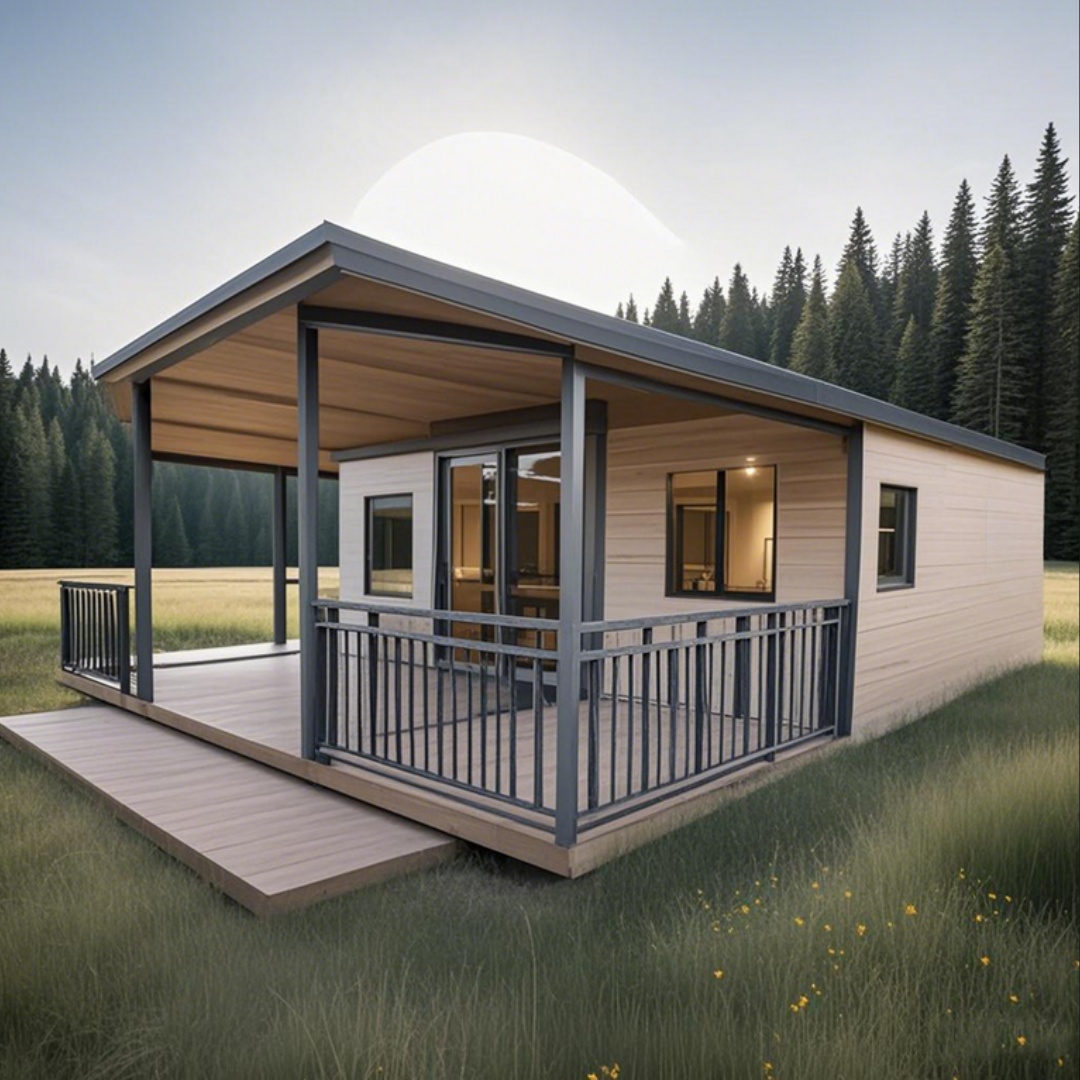
HG Prefab foldable expandable container homes — built to last, delivered worldwide.
A folding container home can be standing on a pad in a morning and connected to the internet that afternoon. Nobody has to dig a trench from the road, wait for a fibre drop, or argue with a utility about a line extension. That is a large part of why these units work so well as remote offices, field accommodation, workforce camps and off-grid family homes. The catch is that the connection has to be designed rather than subscribed to, and the design has three parts that most buyers discover in the wrong order: getting a signal to the site, powering the equipment that uses it, and distributing Wi-Fi inside a building made of steel.
Steel is the recurring problem. A corrugated, coated steel box is an excellent radio shield. It blocks satellite signals, it attenuates cellular reception by a meaningful margin, and it reflects Wi-Fi energy so effectively that a router in one corner of an expanded unit will often leave the opposite wing with a single bar. Every decision below follows from that: the dish and any cellular antenna go outside, cables come in through a sealed gland rather than a drilled hole, and Wi-Fi is distributed as multiple wired access points rather than as one powerful transmitter. This guide works through the whole chain, and it links to our solar power setup guide and microgrid guide wherever the power budget matters, because connectivity and power are one calculation on an off-grid site.
The Real Question: What Reaches Your Site?
Before comparing hardware, establish what is actually available where the unit will stand, because the answer eliminates most options immediately. Work through four checks in order.
- Can you see the sky? Satellite needs an unobstructed cone of sky, roughly from 25° above the horizon upward across most of the visible dome, with no tree canopy, ridge line or building in it. Walk the site with a phone compass and a clinometer app, or simply stand where the dish would go and look up.
- Is there cellular signal, and how much? Do not trust a coverage map. Stand on the roof of a vehicle, or on the pad itself, and run a speed test at the actual dish and antenna location at the actual time of day you will be working. Note the band and the signal bars, and test both the nearest and the second-nearest carrier, because a second SIM on a different network is the cheapest failover you will ever buy.
- Is there line of sight to somewhere with internet? A neighbour, a farmhouse, a main building, a water tower with a radio on it. Fixed wireless and point-to-point bridges both need optical line of sight, not approximate line of sight — a single tree crown in the middle of the path will cost you the link in full leaf.
- What is the power budget? Every option below draws continuous power, 24 hours a day, including while you sleep and during a week of cloud. If your solar and battery system cannot carry a 75–150 W always-on load through the worst week of the year, the connectivity plan has to be revised together with the power plan, not separately.
Most remote sites end up with a primary and a secondary: satellite as the primary because it works where nothing else does, and a cellular link as the secondary because it is cheap, instant and independent. That pairing is the default recommendation of this guide and it is what the rest of it is built around.
Option 1: Starlink — the Default for True Off-Grid
Starlink is a low-earth-orbit satellite service, and the difference from old geostationary satellite internet is orbital altitude: roughly 550 km instead of 36,000 km, which is why latency drops from 600–800 ms to a workable 25–60 ms.
What you actually get
- Speed: typically 100–300+ Mbps down and 10–30 Mbps up in an unobstructed location, with real-world variation by region, by local network congestion and by time of day. Peak-hour congestion in a busy cell can halve that.
- Latency: 25–60 ms to most public targets. Good enough for video calls, online gaming and interactive remote desktop in a way that geostationary satellite never was.
- Power draw: 50–100 W continuous for dish plus router, with short peaks closer to 150 W when the snow-melt and de-icing heaters are active.
- Coverage: works where there is no terrestrial infrastructure at all, which is the decisive advantage. No tower, no trench, no line of sight to a neighbour.
- Data: residential plans are effectively unlimited for normal use; the mobile and priority plans exist for vehicles and for commercial sites where throughput guarantees matter.
Where it struggles
- Obstruction. Even 10–15% obstruction of the dish's sky view produces noticeable dropouts. The app's obstruction checker is conservative and worth running before you commit to a mounting position.
- Handover dropouts. Because the satellites move, the link hands over every few minutes. Most handovers are invisible; occasionally you get a one to three second gap. That is harmless for browsing and streaming and occasionally fatal for a fragile VPN session or a live upload.
- Weather. Very heavy rain attenuates the signal modestly; accumulated wet snow on a flat dish can take the link out entirely until it melts, which is what the heater draw is for.
- Continuous power. It cannot be switched off at night the way you might switch off a pump. It is an always-on load on the battery bank.
Powering it sensibly
At 75 W average, the dish and router consume about 1.8 kWh per day; at 100 W with heaters running in a cold climate, about 2.4 kWh per day. On a 48 V system that is 1.6–2.2 A continuous, or roughly 38–50 Ah per day at 48 V before inverter losses. Sized properly it is a modest load — a 5 kWh usable battery carries the dish alone for well over two days — but it must be in the load table from the start. Our solar power setup guide covers array sizing and autonomy days, and the microgrid guide covers what happens when you combine generation, battery and a backup generator on one bus.
Two practical notes. First, most dishes run on proprietary Power-over-Ethernet from their own supply unit, so the cleanest off-grid installation is a small dedicated inverter or a DC-DC supply feeding that unit, on its own switched circuit so you can reboot the dish without touching anything else. Second, put the dish supply on a circuit the battery management system will not shed during a low-state-of-charge event — or accept that you deliberately want it shed, and wire it to the sheddable board on purpose. Either decision is fine; the wrong answer is discovering which one you got during a storm.
Option 2: 4G/5G Router with an External Antenna
A cellular router with a proper external antenna is the cheapest way to get real bandwidth at a site that has any signal at all, and it is the best failover for a site that does not. Hardware cost is low, monthly cost is low, and installation is an afternoon.
- Speed: wildly coverage-dependent. A good 4G site gives 20–80 Mbps down and 5–20 Mbps up. A good 5G mid-band site gives 100–400 Mbps down and 20–60 Mbps up, and low-band 5G behaves like a slightly better 4G.
- Latency: 30–70 ms on 4G, 20–40 ms on 5G with good signal. Often better than satellite where coverage is strong.
- Power draw: 10–25 W for router plus antenna, roughly a quarter of a satellite dish.
- Cost: hardware is modest; the recurring cost is the data plan, and unlimited or high-cap plans are the only ones worth having if the household streams.
The antenna is the whole trick. A router sitting inside a steel container can easily lose 15–25 dB of cellular signal to the building envelope, which turns a usable outdoor signal into an unusable indoor one. A directional external antenna mounted on a roof rail or a short mast, pointed at the serving tower and cabled to the router inside, recovers that loss and usually more. Use low-loss coax, keep the run as short as you can, and seal the entry exactly as described in the cabling section below.
Buy a router with dual SIM or at least with an easily swapped SIM, and consider two carriers. When the primary network has an outage or a congestion problem — and rural towers do get congested in the evening — a second SIM on a different network is the cheapest resilience available anywhere in this guide.
Option 3: Fixed Wireless from a Local Provider
Fixed wireless is a terrestrial microwave link: a provider mounts a radio on your building aimed at one of their towers or relay points, and you get a symmetric, unmetered connection that behaves like a wired service.
- Speed: commonly 25–100 Mbps, and symmetric on many networks.
- Latency: 15–40 ms, generally the lowest of any wireless option.
- Power draw: the radio is usually Power-over-Ethernet, 10–30 W.
- Requirement: strict line of sight to their tower. Trees, terrain and even a new building next door can end the link.
Where it is available it is usually the best value per megabit and the most stable option, because it is a dedicated link rather than a shared cellular cell. Take it if the survey says the line of sight works and it survives leaf-out.
Option 4: Point-to-Point Bridge from a Neighbour or Main Building
If internet already exists somewhere within a few kilometres and you have clear line of sight to it — a main house and an annexe, two cabins on the same property, a farm office and a worker accommodation unit — a point-to-point bridge is the highest-performance option available and costs nothing to run.
- Speed: 100–1000 Mbps depending on the radio pair, with 300–600 Mbps typical of mid-range 5 GHz and 60 GHz equipment at 1–3 km.
- Latency: 5–15 ms, effectively wired.
- Power draw: 8–20 W per radio, Power-over-Ethernet.
- Cost: a one-off hardware purchase of a few hundred dollars for a pair of radios, plus poles and cable. No monthly fee beyond the internet subscription you are sharing.
The engineering is entirely about the path. You need true optical line of sight, you need to clear the Fresnel zone rather than just the visual line — at 2 km on 5 GHz that means keeping the path clear through an ellipsoid roughly 4–6 m in radius at the midpoint — and you need the radios rigidly mounted, because a pole that sways in the wind moves the beam off alignment. For workforce accommodation and multi-unit sites this is almost always the right answer: see our remote workforce camp guide for how a single uplink gets distributed across several units.
Comparison Table
| Option | Typical speed down / up | Latency | Monthly cost | Power draw | Best for |
|---|---|---|---|---|---|
| Starlink (low-earth-orbit satellite) | 100–300+ Mbps / 10–30 Mbps | 25–60 ms | Medium to high monthly fee, plus hardware | 50–100 W (peaks near 150 W with heaters) | True off-grid sites with no cellular and no line of sight; remote homes, field stations, mobile operations |
| 4G/5G router with external antenna | 4G 20–80 / 5–20 Mbps; 5G 100–400 / 20–60 Mbps | 4G 30–70 ms; 5G 20–40 ms | Low hardware, low to medium data plan | 10–25 W | Sites with usable cellular coverage; the best cheap primary and the best failover everywhere |
| Fixed wireless (provider radio) | 25–100 Mbps, often symmetric | 15–40 ms | Medium, usually unmetered | 10–30 W | Rural sites within line of sight of a provider tower; want stable unmetered bandwidth |
| Point-to-point bridge | 100–1000 Mbps, symmetric | 5–15 ms | None beyond the shared subscription | 8–20 W per radio | Annexes, second units, workforce camps and multi-unit sites with line of sight to an existing connection |
Read the table as a decision order, not a ranking. If you have line of sight to an existing connection, a bridge wins on every technical measure. If a fixed wireless provider can survey you successfully, that is next. If you have strong cellular, a router with an external antenna is cheapest and often fastest. If none of those exist, Starlink is the answer, and it is a good one.
Powering the Whole Network from Solar and Battery
Build the load table first
Add every network device and its continuous draw before you size anything:
- Satellite dish with its router: 50–100 W, peaks near 150 W.
- 4G/5G router with external antenna: 10–25 W.
- Mesh access point: 8–15 W each.
- Network switch, 5–8 port Power-over-Ethernet: 5–15 W, plus whatever it feeds.
- Security camera, outdoor with infrared: 4–12 W each.
- Small network storage or a smart-home hub: 5–20 W.
A realistic always-on package for a family-sized unit — dish, router, three access points, a switch and four cameras — lands around 110–170 W continuous, or 2.6–4.1 kWh per day. That is comparable to an efficient fridge-freezer, and it is the number to hand to whoever sizes the array and the battery. Because it never cycles off, autonomy days matter more than peak capacity: three days of autonomy on the whole house load needs to cover the connectivity load on all three of those days.
DC distribution and UPS behaviour
Two rules make the difference between a network that rides through a cloudy week and one that drops every time the inverter blinks.
- Keep the network on a protected circuit with its own small UPS or DC buffer. A 150–300 VA UPS on the router and the Power-over-Ethernet switch costs very little and covers the inverter transfer, the generator start delay and the brief generator changeover. Without it, every generator start is a five-minute outage that drops calls, tunnels and camera sessions.
- Prefer DC where the device accepts it. Many routers, radios and cameras run natively on 12 V, 24 V or 48 V DC or on Power-over-Ethernet. Feeding them from a DC bus through a Power-over-Ethernet switch avoids inverter standby draw entirely, which on a small off-grid system is worth 15–30 W of pure waste every hour of every day. The dish's own supply usually needs AC, so put it on a small dedicated inverter rather than on the main one, and let that inverter sleep when the dish is not needed.
Finally, put the network cabinet where the temperature is reasonable. A locked steel cabinet in direct sun on a 40 °C day reaches temperatures that will thermally throttle or kill consumer routers. Ventilate it, shade it, and keep it inside the conditioned envelope wherever possible. Our microgrid guide covers the generation and storage side of this in detail.
Getting Cables Through a Steel Wall
This is where off-grid installations are most often ruined. A folding container home is a coated steel envelope, and every hole in it is a permanent water, dust and corrosion risk that also affects the warranty.
The rules
- Never drill through structure. No holes in corner castings, corner posts, the roof skin, the hinge line, the floor cross-members or any load-bearing member of the folded frame. A wall panel away from the corners and clear of the fold line is the only acceptable location.
- Use a factory pass-through if one exists. Many units ship with a prepared cable entry or a service panel designed for exactly this. Use it before making a new one.
- One penetration, many cables. A single 25–40 mm hole fitted with an IP66-rated cable gland or a multi-cable compression gland is far better than four small holes. Glands are sized to the cable diameter, so specify the cable first and order the gland to match.
- Drip loop and downward entry. Route the cable so it approaches the gland from below, with a loop that lets water run off the lowest point instead of tracking along the cable into the building.
- Seal with the right product. Neutral-cure silicone or a butyl tape flange with a mechanical gland boot, never an acidic acetoxy silicone that attacks coatings, and never just a smear of sealant around a bare cable.
- Service loop inside. Leave 300–500 mm of slack at the entry so the gland can be re-terminated later without disturbing the penetration.
- Label both ends. In twelve months, when the dish needs replacing, you want to know which cable is which without pulling anything.
For a dish on a ground pole, run the cable in buried conduit to the pole and bring it up inside the pole so it is never exposed to UV or to a strimmer. Where the run crosses the gravel band or the access route, bury it at 300–450 mm in conduit with a marker tape above it, because that ground has to carry the delivery truck and the lifting machine.
Mesh Wi-Fi in a Steel Box
Steel reflects radio frequency energy. This is the single most misunderstood part of container home networking. A router that covers a whole timber-frame house will leave dead zones in an expanded steel unit, because the wing walls, the floor plate and the ceiling panel all reflect and absorb instead of passing signal.
What actually works
- Do not put the router inside a steel cabinet or against a wall panel. Put it in open air, centrally, at about 1.5 m height.
- Do not rely on wireless mesh hops through steel. A wireless mesh node in the far wing, backhauling through two steel walls to the router, typically delivers a fraction of the throughput it advertises. Cable the backhaul wherever you can.
- One access point per expandable wing. A 20FT, 30FT or 40FT folding expandable unit that opens into two or three wings needs one access point serving each wing, wired back to the switch.
- One outdoor access point for the yard. A weatherproof unit mounted under the eave or on the porch covers the deck, the parking area and the approach, and it is where the phones and the cameras at the perimeter will attach. Mount it outside, not inside pointing out.
- Use 2.4 GHz for range and cameras, 5 GHz for working. 2.4 GHz penetrates and reaches further; 5 GHz carries the throughput for laptops and streaming. Enable band steering and keep the two bands on the same network name.
- Do not overlap channels. With three or four access points in one building, set 2.4 GHz channels to 1, 6 and 11 only, and reduce transmit power so a device hands over cleanly as you walk from wing to wing instead of clinging to a distant node.
The realistic layout for a family-sized expandable unit: the primary router and the Power-over-Ethernet switch in a small ventilated cabinet in the core; one wired access point in each wing; one outdoor unit on the shaded side of the porch; and the dish or cellular antenna cabled to the router through a single sealed gland. That is four powered devices, roughly 40 W of Wi-Fi, and full coverage everywhere including the deck.
Working From Home Over Satellite
Video calls and conferencing
A single high-definition video call uses roughly 2–4 Mbps down and 2–4 Mbps up. A 1080p call is 3–5 Mbps up. A screen-share with video adds 1–2 Mbps. Starlink's 10–30 Mbps of upload comfortably carries two or three simultaneous calls with headroom, and the 25–60 ms latency is low enough that conversation feels natural — the point where delay starts to make people talk over each other is around 150–200 ms, and satellite is well below that.
The thing that breaks calls is not average speed, it is the handover dropout of one to three seconds. Three fixes: run video at 720p rather than maximum quality, which halves the bitrate and makes a brief gap recoverable; keep the call device on 5 GHz close to an access point rather than on the edge of a distant node; and if your platform supports it, enable any setting that smooths over packet loss.
VPN over satellite
Corporate VPNs work fine over Starlink, with one caveat. Tunnel protocols differ in how they handle short interruptions: modern protocols such as WireGuard re-establish quickly and are usually the better choice; older IPsec configurations can drop the tunnel entirely and require re-authentication. If your employer's tunnel is fragile, run it on a device you can restart quickly, and keep the 4G link as a second path so a dropped tunnel does not mean a lost afternoon. Test the actual corporate setup at the site before you commit to a plan, not after.
Upload speed is the real constraint
Satellite and cellular are both asymmetric: much more download than upload. Almost every modern activity that people forget about is an upload — cloud backups, photo sync, off-site camera storage, sending a large file, a phone auto-backing up a video library. A phone uploading 40 GB of holiday video will saturate a 15 Mbps uplink for hours and make every call in the house stutter while it does.
Two controls fix this. First, schedule backups and cloud sync for a window when nobody is working — overnight or a defined hour — rather than letting them run continuously. Second, set quality-of-service rules on the router: give video conferencing and voice strict priority, give general browsing normal priority, and give bulk backup and cloud sync the lowest priority with a capped rate. Ten minutes of router configuration prevents the most common complaint about off-grid internet.
Family Streaming, Smart Home and Cameras
Streaming
Budget the bandwidth honestly. Standard definition is 1–3 Mbps per stream, high definition 5–8 Mbps, and 4K 15–25 Mbps. A household with two HD streams and one 4K stream running at once needs roughly 30–40 Mbps of sustained download, which a good satellite or 5G link delivers easily and a weak 4G link does not. Where bandwidth is genuinely tight, the lever is not the provider but the device settings: set each streaming app to a fixed quality rather than auto, and download content overnight where the service allows offline viewing. On a metered cellular plan this is the difference between a plan that lasts the month and one that does not.
Security cameras
Cameras are the hidden bandwidth and power load, because unlike a video call they upload continuously. A 1080p camera at a moderate frame rate and bitrate uses 1–3 Mbps of constant upload each; a 2K or 4K camera with continuous recording can use 4–8 Mbps each. Four cameras always recording is 4–12 Mbps of permanent upload, which on a 12 Mbps uplink is the whole connection, permanently.
The fix is to record locally and only stream on demand: cameras with onboard storage or a local network recorder use almost no bandwidth until someone opens the app to look. Configure motion-triggered rather than continuous cloud upload, lower the sub-stream used for remote viewing, and put the cameras on the 2.4 GHz network for range. Power-wise, four outdoor cameras with infrared add 15–50 W to the always-on load, which belongs in the table above. Full camera placement and detection design is covered in our smart security guide.
Smart home devices
Smart switches, thermostats, sensors and voice assistants use very little bandwidth individually — kilobits, mostly — but they are chatty and they do not tolerate a flaky network. Give them a dedicated 2.4 GHz network, keep them off the guest network, and make sure the hub has the same UPS protection as the router, because a smart home that loses its hub after every generator start is a smart home nobody trusts.
Mounting the Dish: Roof Rail or Ground Pole
Choosing the position
Ground pole is usually the better answer for a folding container home. It puts the dish where you can service it without climbing onto the roof, it gives a longer unobstructed cone of sky than a dish sitting just above a roofline, it keeps the cable run short and fully protected inside the pole, and it avoids adding wind load and penetrations to the roof of a relocatable building. Set a 50–75 mm galvanised steel pole in a concrete footing 600–900 mm deep, sized to your frost depth and your soil, and brace it if it is taller than about 3 m.
Roof mounting is right when the ground position is obstructed — a pad in a treed hollow, for instance — or where the site is fenced and the pole would be vulnerable. Two constraints apply. First, do not penetrate the roof skin: use a non-penetrating ballasted or clamp-on mount that grips the roof rail or the corner castings, or a purpose-made ridge bracket designed for the unit, and check with us before drilling anything. Second, respect wind loading: a dish presents roughly 0.1–0.2 m² of effective area, which at a 40 m/s design gust is a meaningful pull on a clamp, and on a relocatable building that pull is applied to a structure designed to be moved. Clamp to structure, use a secondary safety tether, and re-check the clamps after the first storm season and then annually. Our wind load guide covers the design wind figures for our units.
Whichever you choose, verify the sky view with the provider's obstruction tool before the concrete sets, and remember that a summer survey in full leaf is the honest one — a bare winter tree is not an obstruction in February and a serious one in July.
Lightning and grounding awareness
A dish on a pole or a roof rail is the tallest metal object on the site, and that is exactly where lightning wants to go. Do not improvise.
- Bond the mast. The pole or the roof mount should be bonded to the site's earthing system with a substantial conductor, sized and installed to your local electrical code.
- Fit surge protection on the data cable. An Ethernet surge arrestor at the point where the cable enters the building protects the router, the switch and everything behind them. A dish strike that travels down the data cable is the most common way a whole network is destroyed in one event.
- Protect the power side too. Surge protection on the AC feed to the dish supply and on the DC bus feeding the network cabinet.
- Get a professional in exposed sites. On a ridge, in a thunderstorm-prone region, or on a remote site where a strike means a long wait for parts, have a qualified electrician design the bonding and the air terminal. This is one of the few items on this list where the correct answer is genuinely "hire someone".
Cable care
Use outdoor-rated, UV-resistant cable for every external run, keep the proprietary dish cable uncut where the manufacturer specifies a continuous run, and never route a data cable alongside an AC power cable for any distance — keep 150–300 mm of separation or cross at 90 degrees. Support the cable every 400–600 mm so it does not flap in the wind, and leave a drip loop at every entry.
Reliability: Failover, Priority and Monitoring
- Run two independent links. Satellite primary with a cellular secondary, or fixed wireless primary with a cellular secondary. A dual-WAN router switches automatically when the primary path fails, and the monthly cost of a second low-capacity SIM is trivial against the cost of being unreachable.
- Set quality of service. Priority one for voice and video conferencing, priority two for general browsing and streaming, priority three for bulk sync and backups with a rate cap.
- Monitor uptime and power. A router that logs its own connectivity, plus a battery monitor that reports state of charge, tells you whether an outage was the link, the inverter or the battery. Without that you will replace the wrong component.
- Have a manual restart path. Label the network cabinet, leave a documented sequence for restarting the dish and router, and make sure someone else on the site can follow it.
- Test before you depend on it. Run a full working day at the site on the actual link before you move in or commit a team to it. One day of testing reveals congestion patterns, dropout frequency and coverage holes that no specification sheet will show you.
What a Complete Setup Costs
| Item | Typical cost (USD) | Notes |
|---|---|---|
| Starlink dish, router and mounting hardware | $350–$2,500 | Standard residential kit at the low end; flat high-performance or priority hardware at the upper end |
| Monthly satellite service | $50–$150+ per month | Residential plans are cheaper; mobile and priority plans cost more and buy throughput priority |
| 4G/5G router with external antenna, dual SIM | $120–$450 | The single best value item in this guide; buy dual SIM for carrier failover |
| Cellular data plan | $30–$90 per month | High-cap or unlimited only; metered plans disappear fast under streaming |
| Point-to-point bridge radio pair | $250–$900 | Plus poles, cable and the mounting hardware at each end |
| Mesh access points, 2–3 indoor plus 1 outdoor | $200–$700 | Outdoor units cost more; buy units with wired backhaul support |
| Power-over-Ethernet switch, 8 port | $60–$180 | Feeds the access points and the cameras from one cable each |
| Cable glands, conduit, outdoor cable and sealant | $80–$250 | UV-rated cable and IP66 glands; do not economise on the sealant |
| Ground pole, concrete and earthing | $120–$500 | Galvanised pole plus footing; add the earthing conductor and bonding |
| Surge protection, data and power | $60–$250 | Ethernet arrestor at the building entry plus AC and DC protection |
| Small UPS for the network cabinet | $80–$250 | Covers inverter transfer and generator start delay |
| Professional dish mount and earthing, exposed sites | $300–$1,200 | Worth it on a ridge, in storm country or anywhere a strike is likely |
A realistic full installation for a remote family unit — satellite primary, cellular failover, three access points, proper glands, a ground pole and surge protection — lands around $1,500–$3,500 in hardware plus the monthly services. For scale against the building: factory prices are 20FT $7,200–$9,800; 30FT $10,500–$14,500; 40FT $12,500–$16,500. Connectivity is a small fraction of the project and it is what makes it liveable, so budget it as part of the build rather than as an afterthought.
Mistakes to Avoid
- Assuming the indoor router will get cellular signal. It will not, through coated steel. External antenna, every time.
- Putting the dish on the roof without checking wind loading and the mount type. Clamp to structure, do not penetrate the roof skin, and tether it.
- Drilling a hole in the wall with no gland. One IP66 gland with a drip loop, or a guaranteed leak and a corrosion problem.
- Trusting a coverage map instead of a speed test on site. Test at the actual location at the actual working hour.
- Forgetting the dish is a 24-hour load. 50–100 W continuous, 1.2–2.4 kWh a day, including the days the sun does not appear.
- One router for a three-wing expandable unit. One access point per wing, wired backhaul, plus one outdoor unit.
- Wireless mesh hops through steel walls. Cable the backhaul or accept a fraction of the throughput.
- Continuous cloud upload from cameras. Record locally, stream on demand, or you will saturate the uplink permanently.
- No UPS on the network. Every generator start becomes a five-minute outage for calls, tunnels and cameras.
- No surge protection on the data cable. One nearby strike takes out the router, the switch and everything connected to them.
- Sizing the dish off a winter sky survey. Survey in full leaf.
- Skipping failover. A second carrier on a dual-SIM router costs very little and covers the outage you cannot predict.
- Running data cable parallel to AC cable. Separate them, or cross at 90 degrees.
- Installing the dish mount before the unit is placed. See the sequence below — the final orientation is not known until the structure is standing.
Delivery Day and the Connectivity Sequence
Connectivity work splits into before and after delivery, and the split is driven by lifting, not by networking. What you do before: run the buried conduit from the unit position to the dish pole location, cast the pole footing, install the earth electrode and the bonding conductor, and compact the access route. What you do after: mount the dish, drill and gland the single wall penetration, install the indoor cabinet, the access points and the cameras.
The reason is simple. Yes — a crane or forklift is required to offload the folded unit from the truck. Once it is set in position, four workers can unfold and assemble the main structure in about 2 hours. Until the unit is unfolded and levelled you do not know exactly where the walls land, which face the service connections are on, or where the shaded side of the porch is — and all three determine where the gland, the cabinet and the outdoor access point go. The delivery vehicle and the lifting machine also need firm, compacted, level ground with a 3.5–4 m wide route and about 4.5 m of overhead clearance, so keep the conduit trench backfilled and compacted and the route clear of equipment on the day.
Once the structure is standing, the install is genuinely a one-day job: pole and dish in the morning, gland and cabinet by lunch, access points and cameras in the afternoon, quality-of-service rules and failover test before dinner. Browse the folding container home range, look at a compact 20FT winter-finish unit for a single-person remote office, or a family-sized 30FT white unit where three wired access points and an outdoor unit cover every wing and the deck.
Planning connectivity for a remote container home?
HG Prefab, made by Henan Huangang Machinery Equipment Co., Ltd., builds 20FT, 30FT and 40FT folding expandable container houses that ship folded worldwide and unfold on a compacted, level pad. Tell us where the site is, whether you have cellular coverage or clear sky, and how much always-on load your solar and battery system can carry, and we will confirm the model, the service connection face and the mounting approach. Email hgmechequip@gmail.com or WhatsApp +86 191 0388 7380. Full range on the products page.
Browse modelsFrequently Asked Questions
Does Starlink work on or inside a steel container home?
The dish must be outside with a clear view of the sky, because the coated steel roof and walls are opaque to the Ku-band and Ka-band radio signal the dish uses. Mount it on a roof rail, a ridge bracket or, better, a ground pole 6–12 m from the unit with an unobstructed view from about 25 degrees above the horizon upward. The Wi-Fi router itself then sits inside, but a single router behind a steel wall will not cover a whole expandable unit: steel reflects and absorbs 2.4 GHz and 5 GHz energy, so plan one access point per expandable wing plus an outdoor unit for the yard, connected by cable rather than relying on wireless mesh hops through the steel.
How much power does a Starlink dish and router draw from a solar battery system?
Budget 50–100 W continuous for a standard Starlink dish with its Wi-Fi router, with brief peaks near 150 W when the heaters run during snow or heavy cold-weather operation. Over 24 hours that is roughly 1.2–2.4 kWh per day, which is a real but manageable load on an off-grid system. Add 10–25 W for a 4G or 5G router with an external antenna, 8–15 W for each mesh access point and 5–10 W for a small network switch, and a complete always-on connectivity package typically lands between 75 W and 150 W continuous, or 1.8–3.6 kWh per day.
Can I work from home and run a VPN over satellite internet?
Yes, with realistic expectations about latency. Starlink typically delivers 25–60 ms of latency and 100–300 Mbps or more down with 10–30 Mbps up, which is comfortably enough for Zoom, Teams and Google Meet video calls, remote desktops and corporate VPN tunnels. The two things that hurt are brief handover dropouts of one to three seconds every few minutes as the dish switches satellites, and heavy obstructions that cut throughput. Use a VPN protocol that survives short interruptions, run video calls at 720p rather than 4K, and keep a 4G or 5G connection as a failover link for anything where a dropped tunnel means a dropped session.
How do I run internet cables through the steel wall of a container home?
Never drill a hole through a structural member, a corner casting or the roof skin of a folding unit. Use an existing factory cable pass-through where one is present, or have a single 25–40 mm penetration made through the flat wall panel well clear of the corner posts and the fold hinge line, then fit an IP66-rated cable gland or a compression gland with a rubber boot sized to the cable diameter. Seal the outside with a neutral-cure silicone or a butyl tape flange, fit a drip loop below the entry so water runs off rather than tracking along the cable, and leave a service loop inside so the gland can be re-terminated without pulling the wall apart. Every unsealed penetration is a water, dust and corrosion entry point on a steel building.
Does delivery and installation affect where I put the dish and the network equipment?
Yes, and it sets the order of work. Yes — a crane or forklift is required to offload the folded unit from the truck. Once it is set in position, four workers can unfold and assemble the main structure in about 2 hours. Because the unit is unfolded and levelled after it is set down, run the permanent dish mounting, the cable glands and the indoor network cabinet after the structure is standing and the final orientation is known, not before. During site preparation, lay the buried conduit and the ground pole foundation to the point where the unit will stand, keeping a 3.5–4 m wide access route with about 4.5 m of overhead clearance clear for the delivery vehicle and the lifting machine.
Talk to HG Prefab
Henan Huangang Machinery Equipment Co., Ltd. (HG Prefab) manufactures folding expandable container homes in 20FT, 30FT and 40FT sizes and ships them folded worldwide. Factory prices are 20FT $7,200–$9,800, 30FT $10,500–$14,500 and 40FT $12,500–$16,500. For connectivity and power planning, send us your site location, whether you have clear sky or cellular coverage, what your nearest tower distance is and how much always-on load your solar and battery system can carry — those four facts determine the link, the mounting, the power budget and the model.
Email hgmechequip@gmail.com or message us on WhatsApp at +86 191 0388 7380. You can also browse the full range at products.html or request a quotation at contact.html.